
What administrators control
Administrators manage PhishAway in SecureAge Central, SecureAge's administration console. They can settle doubtful email for everyone, decide which senders to trust and follow activity across your organisation. Reviews, sender lists and the dashboard work with both the client add-in and the server add-in.
Decide once, for everyone
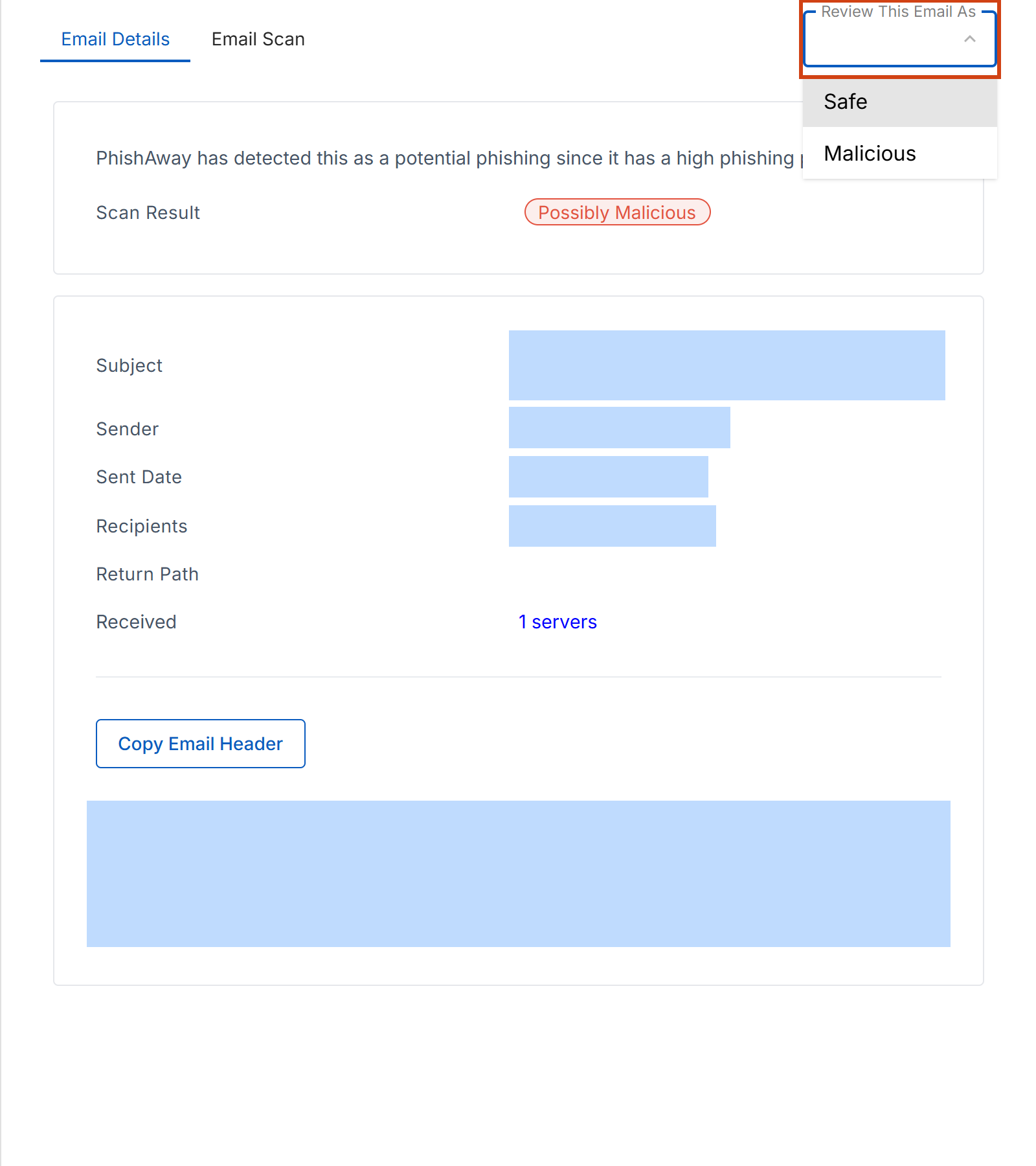
When a phishing campaign hits, many of your staff receive near-identical copies of the same email. One review decision covers them all, including copies that arrive later. Staff see the updated result in Outlook.
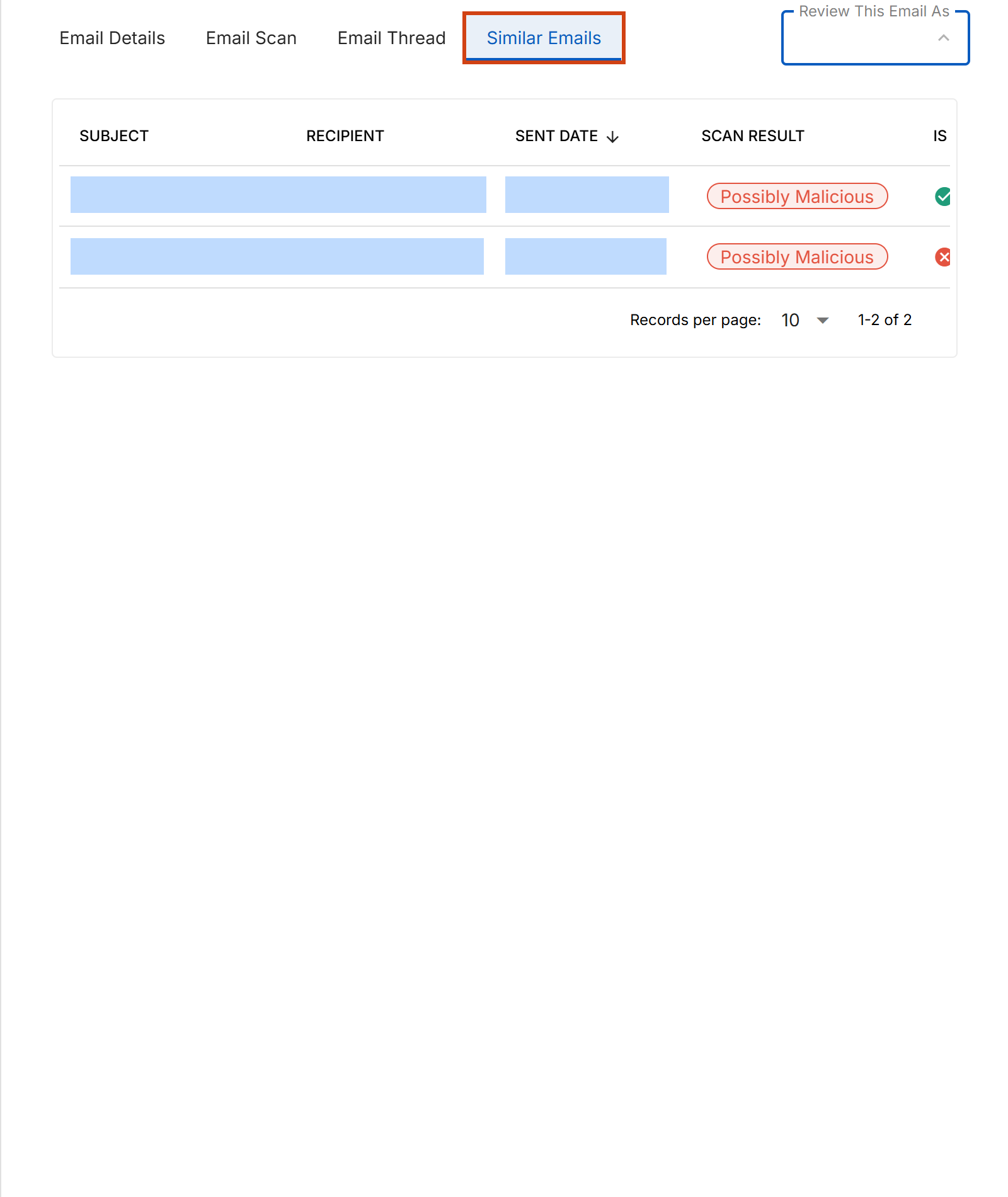
Before deciding, an administrator can see the similar copies and who received them.
- Administrators can review any email PhishAway flagged, without waiting for a report.
- A decision can also cover the rest of an email conversation.
- An administrator can change a decision later by reviewing the email again.
Trust or block senders
| List | What it does |
|---|---|
| Trusted senders | Email from these senders is shown as Safe, so a partner's genuine email isn't flagged by mistake again and again. |
| Blocked senders | Email from these senders is shown as malicious, whatever it contains. |
Changes also update email already received, though they can take a little time to reach every mailbox. A sender list takes priority over a review.
PhishAway doesn't check email from a trusted sender for dangerous links or attachments. Trust only senders you're sure of.
Balance caution and convenience
Administrators choose how cautious PhishAway is, for the whole organisation.

| Setting | What it does |
|---|---|
| Low | Flags the fewest emails, so fewer safe emails are flagged by mistake, but more phishing is missed |
| Medium | Balances the two |
| High | Catches the most phishing, but flags more safe emails by mistake |
A new setting applies to email checked from then on. See how each setting performed in our internal tests.
See what PhishAway is catching
The PhishAway dashboard shows, for the dates you choose, how many emails PhishAway checked, how many threats it found and how many reports are waiting. A chart shows the daily trend, so you can spot a campaign as it starts.
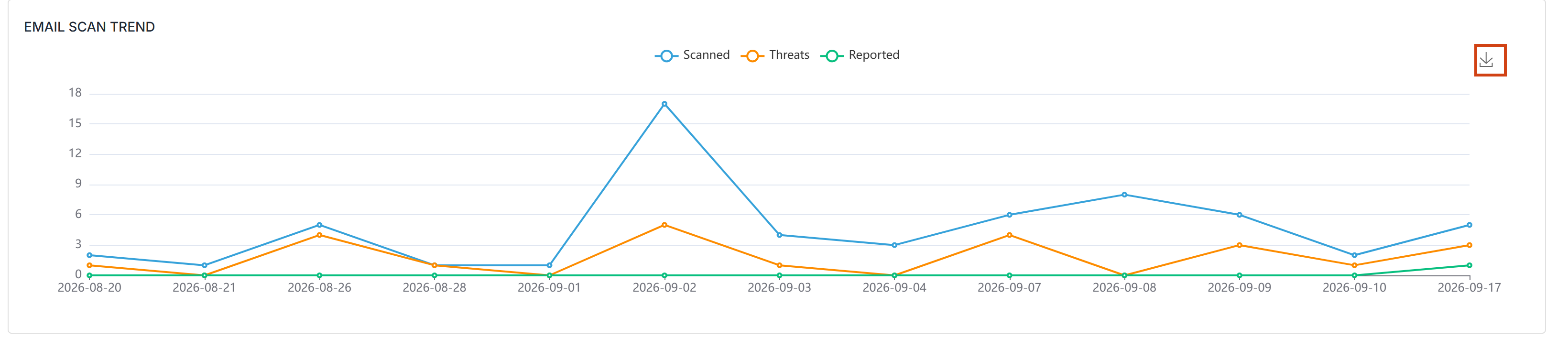
- Look back up to three months, and save the chart as an image.
- The dashboard isn't live. By default, the day's figures are refreshed every five minutes.
- An event list records notable activity, such as threats found, reports made and failed checks. Administrators can search it, filter it and export it as a spreadsheet file.
Warnings in your own words
Staff act on warnings they recognise. In SecureAge Central, administrators can set these for the client add-in:
- the names of the Safe and Malicious labels in the inbox
- the text of the warning across the top of a dangerous email
- the explanation shown with a Safe or Possibly Malicious result
- whether the PhishAway pane stays hidden until someone opens it
- how long results are kept on each computer
- whether the email's text is sent with a report
PhishAway sends new settings to every connected computer when an administrator applies them. A computer that was offline receives them when it next connects.
Each administrator's permissions in SecureAge Central decide what they can view and change.